Model it, script it, or schedule it? In ArcGIS Pro, scheduling runs a tool you already have — and the unattended run has rules of its own
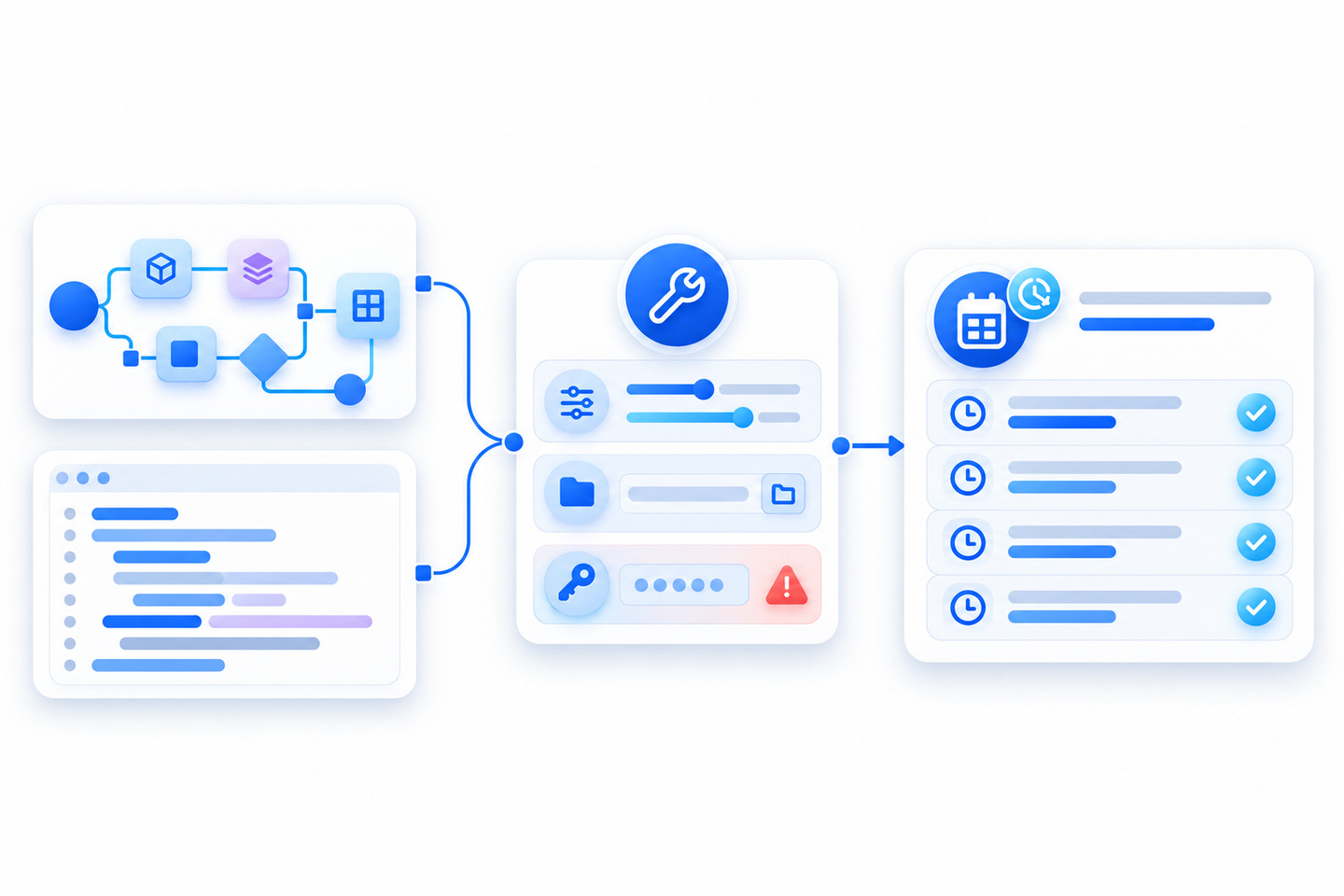
An ArcGIS Blog post from September 29, 2026, Automate what repeats and nothing else in ArcGIS Pro, walks through ModelBuilder and Python and adds that “Models can also be scheduled to run at a specific time or recurring interval.” It is easy to read that as three choices: model it, script it, or schedule it. It is not. Scheduling is how you run a tool you already have. The real job is two decisions, in order: where the logic lives, and how it runs when nobody is watching. The second one has documented rules that decide whether the first unattended run succeeds.
Everything below was checked against the ArcGIS Pro 3.7 documentation and the other pages listed under References. The two Python scripts
below were run on ArcGIS Pro 3.7.1 through propy, the program the docs
name for running a Python script as a scheduled task.
Schedule is an option on a tool, not a way to build one
Pro’s help is blunt: “Every geoprocessing tool can be scheduled.” You open the tool, fill in its parameters, then “Click the Run button split menu and choose Schedule.” Pro then hands the run to Windows Task Scheduler.
A ModelBuilder model is saved as a tool in a toolbox, and “As with any geoprocessing
tool, you can open and run a model tool in the Geoprocessing pane.” So a model does not
have to be exported, or wrapped in a script tool, before you can schedule it. A script tool is a
geoprocessing tool too, and schedules the same way. A stand-alone .py
file is not a tool, so you cannot open it and choose Schedule: you either wrap it in a script
tool, as our weekly CSV mirror post
did, or register it with Task Scheduler yourself, which we cover below.
First decision: model it or script it
Pick on what the logic needs, because the move between the two is not free. ModelBuilder gives you iterators, logical tools and a visual diagram of the workflow. It also has a hard edge: “Only one iterator can be used per model,” and once you add one, “all tools in the model iterate for each value in the iterator” unless you nest the looping part in a submodel.
The blog’s escape hatch is that “you can export the model to Python window or a Python script and continue developing the generated code.” True, with a catch the export page states plainly:
So a model that leans on an iterator or a branch is rewritten, not exported, when it outgrows
ModelBuilder. Here is what that rewrite looks like for an Iterate Feature Classes iterator, an
inline %Name% output name and a row-count branch:
"""S2 - what you write by hand after Export To Python File, because the docs say
'Model tools Iterators, Utilities, or Logical will not be exported to Python.'
Replaces an Iterate Feature Classes (Feature Type=Point) iterator + inline %Name% output name
+ an If Row Count Is style branch, using arcpy.ListFeatureClasses and plain if/else."""
import os, sys, arcpy
GDB = os.path.join(os.path.dirname(os.path.abspath(__file__)), "scratch.gdb")
if not arcpy.Exists(GDB):
    sys.exit(f"workspace missing: {GDB}")
arcpy.env.overwriteOutput = True
with arcpy.EnvManager(workspace=GDB):
    fcs = arcpy.ListFeatureClasses("sites*", "Point")                  # Iterate Feature Classes
    if not fcs:
        sys.exit("no matching Point feature classes")
    for name in fcs:
        n = int(arcpy.management.GetCount(name)[0])
        if n > 0:                                                       # logical tool -> if/else
            out = f"{name}_buf"                                         # %Name%_buf
            arcpy.analysis.Buffer(name, out, "50 Meters")
            print("buffered", name, "->", out, n)
        else:
            print("skipped empty", name)
Run on Pro 3.7.1 through propy, against the scratch file
geodatabase that the S1 job below also reads:
buffered sites -> sites_buf 3
EXITCODE=0
The two sys.exit guards are ours, not part of any export. Run
before that geodatabase existed, the script stopped with exit code 1 and a message naming the
missing workspace, so a run with nothing to do cannot pass for a successful one.
Our rule of thumb, not Esri’s: if the job is a fixed chain of tools that someone who does not write Python has to maintain, keep it a model. If it already needs loops, branches, its own logging or version control, start in Python. If you go to code, our Python toolbox post shows how we ship it into every project.
Second decision: how it runs unattended
| Aspect | Pro’s Schedule window | Your own Task Scheduler task |
|---|---|---|
| What runs | Any geoprocessing tool, model tools and script tools included | A stand-alone script, launched with propy |
| Inputs | The parameter values you set when you scheduled it | Whatever your script reads |
| Run record | The History pane’s Scheduled Tools section | Your own log file and exit code |
What Pro’s scheduled run does differently
The run happens outside your Pro session, and four rules follow.
- Parameters are frozen. “The parameter values you specify will be used every time the scheduled tool runs.”
- Use dataset paths, not map layers. “When scheduling a tool, use the
full path to a dataset instead of layers from a map.” A layer input works only if the
project is saved and still where it was when you scheduled the tool; otherwise “it will
fail with an error stating the input does not exist.” A map input takes the full path to
the project and map, such as
C:\Projects\City.aprx\StreetMap, with the project saved first. - It does not touch your map. Tools that update layers or maps, such as Select Layer By Attribute, Select Layer By Location and Make Feature Layer, “will not have their processing take effect in the project.” A scheduled selection does not display, because the stand-alone Python process that runs scheduled tools does not update a project’s layers and maps. The same tools still work inside a scheduled model tool or script tool, where “their result will be used for further processing.”
- Decide how outputs repeat. To overwrite the same output each run, the docs
say to use a standard dataset path; the time stamp variable
%t%names a new one each run instead. Overwriting hits a schema lock “if the dataset is in an open map.” Per-run outputs pile up until something deletes them; that is our inference, since the page does not discuss retention.
Registering a script yourself
For a script you keep in version control, the Python in ArcGIS Pro page gives the program to
use: “If you are running a Python script as a scheduled task, use
C:\
@echo off
call "C:\PROGRA~1\ArcGIS\Pro\bin\Python\Scripts\propy" "%~dp0s1_nightly_job.py"
set RC=%ERRORLEVEL%
echo EXITCODE=%RC%
exit /b %RC%
The job it calls builds its paths from the script’s own full path, so they do not change
with the run-as account. It treats a missing input as a failure, sets
overwriteOutput itself, stamps its output name, and sets up its log
before it imports arcpy:
"""S1 - a stand-alone job written to be run unattended by Windows Task Scheduler via propy.
Paths are built from the script's own full path, so they do not change with the run-as account.
A missing input is a failure, never something the job quietly rebuilds. Logging is set up
before arcpy is imported, and the import runs inside the try, so a failure there is logged too."""
import datetime, logging, os, sys

ROOT = os.path.dirname(os.path.abspath(__file__))
GDB = os.path.join(ROOT, "scratch.gdb")
logging.basicConfig(filename=os.path.join(ROOT, "s1_nightly_job.log"), level=logging.INFO,
                    format="%(asctime)s %(levelname)s %(message)s")

def main():
    import arcpy
    logging.info("product=%s python=%s", arcpy.ProductInfo(), sys.executable)
    src = os.path.join(GDB, "sites")
    if not arcpy.Exists(src):
        raise FileNotFoundError(f"input missing: {src}")
    arcpy.env.overwriteOutput = True
    stamp = datetime.datetime.now().strftime("%Y%m%d%H%M%S")
    out = os.path.join(GDB, f"sites_buffer_{stamp}")
    res = arcpy.analysis.Buffer(src, out, "100 Meters")
    n = int(arcpy.management.GetCount(res[0])[0])
    logging.info("wrote %s with %d features; messages:\n%s", out, n, res.getMessages())
    print(f"OK {os.path.basename(out)} count={n}")

if __name__ == "__main__":
    try:
        main()
    except Exception:
        logging.exception("job failed")
        print("FAILED - see log", file=sys.stderr)
        sys.exit(1)
We ran it through the wrapper twice: first before a separate setup script had created the
three-point sites feature class, then after. The first run wrote
FileNotFoundError: input missing and its traceback to the log, and
the wrapper itself returned 1 to its caller:
FAILED - see log
EXITCODE=1
OK sites_buffer_20261022134011 count=3
EXITCODE=0
The exit code is ATS practice, not Esri documentation: every failure inside the
try, the arcpy import included, becomes a log line and
sys.exit(1), so a failed run leaves a record. Whether Task
Scheduler’s own last-run result shows that code is Windows behavior that Microsoft’s
page does not spell out, so read the log, not only the scheduler. Each successful run also adds
a new sites_buffer_ feature class, so this job needs the same
cleanup as %t%.
A script like this runs outside Pro, so one of four conditions must hold, or
import arcpy raises RuntimeError: NotInitialized. The four are: Sign me in automatically is checked, Pro is open, Pro is authorized to
work offline (if your administrator allows it), or Remember my certificate is
checked (PKI).
What breaks the first unattended run
- Licensing. “Scheduling a geoprocessing tool is possible with all ArcGIS Pro license levels.” That covers the scheduler. Our inference, which the scheduling page does not state: each tool you schedule keeps its own license level, extension and any credit cost, so check each tool’s reference page. The scheduling page itself names no cost.
- Named User sign-in. Check Sign in automatically when you sign in to Pro (the Python page’s list of four conditions words it as Sign me in automatically); “This is required for the tool to run outside ArcGIS Pro in the scheduled tool Python process.”
- The sign-in does not last forever. The Named User token has a maximum expiration time set by the account administrator, and when it is exceeded you must sign in again, so a job that runs today can stop later until someone signs in. If that bites, the docs suggest you “switch to a single-use license if possible.” A Single Use license needs no sign-in; Pro 3.7 needs new Single Use licenses, and Concurrent Use licenses are not valid at 3.7.
- Stay signed in to the machine. “You must be signed in to the machine for scheduled tools to run.” That is the default; the next item covers the exception.
- Runs while you are logged off need an administrator. The Run whether user is logged on or not option needs the run-as account in the computer’s local administrator group, and changing Task Scheduler’s extra options at all needs a local administrator sign-in. A group policy may block these runs; the docs say to contact your system administrator. They also suggest: “If permitted, consider running critical scheduled tasks with a generic user account.” If you do, that account must itself meet one of the four conditions above, which means a license of its own: under Named User, the license level follows that member’s user type, and a Single Use license needs no sign-in. It does not borrow your Named User sign-in.
- Set a time limit and an overlap rule. Pro’s schedule shows up in Windows Task Scheduler, which has options the Schedule window lacks. Among them are “Stop the task if it runs longer than a specified period of time” and “Choose what happens if a task is still running when the task is scheduled to run again.” Set both, so one hung run cannot hold up the next.
- Test before you trust the timetable. In the Scheduled Tools list, “Click Run to immediately run the scheduled tool,” which the docs describe as useful for testing fast-running processes that you scheduled to run some time in the future.
- Remote data. Save the connection credentials before scheduling, or the run
may fail with an error that the data “is not valid or does not exist”; our
mirror post walks through them
for an enterprise geodatabase. Saved credentials then live on that machine; an
.agsfile, for one, “allows credentials to be stored in the file.” Our practice is to treat such connection files as secrets and keep them out of the repository. A web toolbox imported withUseSSOIdentityIfPortalOwnedwill “prompt the Sign In dialog box if a user is not already signed in,” and an unattended run cannot answer it.
Where the record lives
The Scheduled Tools section of the History pane lists every tool scheduled on the machine
under your account, “regardless of the project from which the tools were scheduled,”
and each run adds a time-stamped item marked as succeeded, completed with warnings, or failed.
Scheduling also writes a folder with a Python script under
%localappdata%\Esri\ArcGISPro\Geoprocessing\<name>, and you may
edit that script to add more tools. Be careful with that: Delete Schedule removes “the
associated scripts, log files, and folders,” so edits you made there go with it.
A record only helps once a run has happened. A job that never starts, because the machine was signed out, writes no log line of its own. Our practice is to have each successful run leave a time stamp, and to have something else check that time stamp and alert a named person when it goes stale. Do not lean on Task Scheduler’s email or message actions for that; both are “marked deprecated by Windows.”
If no desktop should own the job at all, ArcGIS Online can run scheduled notebook tasks instead, and those are metered. At the time of writing (October 2026), the ArcGIS Online credits page lists “1.5 credits per hour, per run using the Standard runtime, calculated per minute,” and 4.5 credits per hour on the Advanced runtime. Whether your job’s code runs unchanged in a hosted notebook is a separate check that this post does not cover.
References
- ArcGIS Pro: Schedule geoprocessing tools (every tool can be scheduled; parameters, paths, layers and maps, sign-in, Task Scheduler options, History pane)
- ArcGIS Pro: Run a model (a model tool opens and runs like any geoprocessing tool)
- ArcGIS Pro: Iterators (one iterator per model, and every tool iterates)
- ArcGIS Pro: Export a model to Python (iterators, utilities and logical tools are not exported)
- ArcGIS Pro: Python in ArcGIS Pro (propy for scheduled tasks, and the four conditions for running outside Pro)
- ArcGIS Pro: License types (license level by user type, Single Use needs no sign-in, Concurrent Use not valid at 3.7, offline authorization needs administrator approval)
- ArcGIS Pro: ImportToolbox (.ags files can store credentials; UseSSOIdentityIfPortalOwned prompts the Sign In dialog)
- ArcGIS Online: Understand credits (scheduled notebook task rates)
- Microsoft Learn: IRegisteredTask::get_LastTaskResult (what Task Scheduler records as the last task result)
- ArcGIS Pro: A quick tour of creating script tools (a script tool is a geoprocessing tool)
- ArcGIS Blog: Automate what repeats and nothing else in ArcGIS Pro (September 29, 2026; the post this article starts from)
Have a Pro job someone still runs by hand?
We can help you decide whether it belongs in a model or a script, and set it up to run unattended without surprises. Book a free intro call and bring the job with you.
Book a free intro call